
Where to open settings: main screen → “Settings” tab. Some options apply to the entire app, while others apply to the selected wallet (name, avatar, color are set in wallet settings / by tapping on the wallet card).
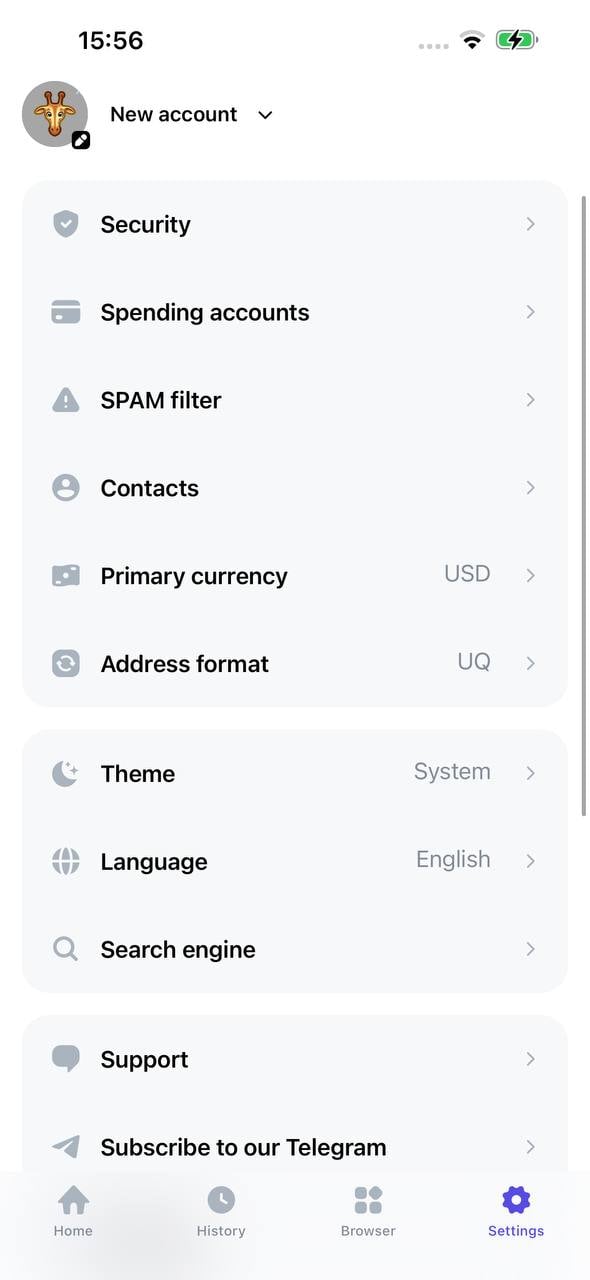
Theme (light / dark / system)
Screen: Settings → “Theme”.Options:
- Light — light background, dark text.
- Dark — dark background, light text.
- System — automatically follows the device’s system theme (light/dark depending on OS settings).
themeStyle key in app storage). When changing theme, the navigation bar (NavBar) color is also updated.Default: “System”.
Interface Language
Screen: Settings → “Language”.Available languages:
- English
- Русский
- Українська
- Español
- Deutsch
- Français
- Italiano
- Português
langResources). On first launch, if no language is selected, the system language may be used (getLocales()[0].languageCode).Where stored: locally (
languageState key). After changing language, the app restarts to apply translations to all screens.Default: system language or saved value.
Search Engine (in browser)
Screen: Settings → “Search engine”.Options:
- Google — search through Google when entering a query in the app browser address bar (WebView).
- DuckDuckGo — search through DuckDuckGo.
searchEngine key, shared storage). Used when substituting search URL when user enters text in the app browser address field.Default: DuckDuckGo.
Primary Currency (for amount display)
Screen: Settings → “Primary currency”.Options: USD, EUR, RUB, GBP, CHF, CNY, KRW, IDR, INR, JPY. The interface displays currency symbol and label (e.g., U.S. Dollar for USD).
Where stored: in Tonhub cloud storage (by
primaryCurrency-v1 key), linked to device/account. This allows preserving currency choice when reinstalling the app (if using the same key).Default: USD.
Usage: balances, transaction amounts, fees, and fiat equivalents are displayed in the selected currency (using exchange rates from backend).
TON Address Format (bounceable / non-bounceable)
Screen: Settings → “New address format”.Options:
- Bounceable. If the recipient is a contract that is not yet deployed or cannot process the request, TON is returned minus the processing fee.
- Non-bounceable. If the contract doesn’t exist, TON will be lost (spent on network fees).
bounceableWalletFormat key). Affects how TON addresses are displayed and copied (when receiving, in contacts, in data provided to dApps, etc.).Default:
true (bounceable). In code for “new” scenarios, non-bounceable may be used by default; actual value is taken from storage.
Spam Filter
Screen: Settings → “Spam filter”.Settings:
- Minimum amount: TON transactions with amounts below the specified threshold (in TON) are automatically marked as spam. User enters value in TON; it’s saved in nano-TON. Used only for TON (and TON tokens); Solana transactions are not marked by this rule.
- Don’t show comments on SPAM transactions: toggle. If enabled, comments (payload) on transactions marked as spam are not displayed in the list.
- Manual list (deny list): addresses that the user manually added to “spam”. Such addresses show a spam badge when sending, but sending is not blocked — user can confirm the transfer. In the spam filter screen, you can view the list and remove addresses from blocking (“unblock”).
Note: “spam” marking by amount and deny list applies only to TON network operations (and token display). Solana transactions don’t go through this filter.
Wallet Settings (name, avatar, color)
Screen: tapping on selected wallet card on main screen or in switcher → “Wallet settings” (or wallet editing screen).Parameters (per wallet):
- Name: arbitrary wallet name (text). Displayed on card and in wallet list. For Ledger, device name can be set.
- Avatar: selecting avatar image from set (index). For Ledger, avatar doesn’t change (remains null).
- Color: selecting color from palette (index in color array). Used for wallet card styling.
walletsSettings key; value is object like { [addressKey]: { name, avatar, color } }. Key is linked to wallet address (or Ledger identifier). Data is local.Default: name — “Wallet N” (N = number in list) or Ledger name; avatar and color are computed from address hash (deterministically) if user hasn’t changed them.
Security (PIN, biometrics, app lock)
Screen: Settings → “Security”. Available only for regular wallets (not for Ledger-only scenario).Settings:
- PIN code: setting, changing, or removing PIN for unlocking key access and confirming operations. Status (set / not set) is stored in secure storage (SecureStore / Keychain).
- Biometrics: enabling/disabling login and operation confirmation via Face ID (iOS) or fingerprint / face (Android). Available only if PIN is already set. Status stored in app (useBiometricsState).
- Lock app with auth: when enabled, app requests PIN or biometrics when returning from background (or when opening). Separate toggle in “Security” section.
Note: these options don’t “configure” the backend — they only affect local unlocking and operation confirmation on the device.
Contacts (address book)
Screen: Settings → “Contacts”.What it is: list of saved contacts — name and TON or Solana address. User can add, edit, and delete contacts. When transferring, selecting a contact substitutes the address and displays the name; contacts are also used for “known wallet” marking and connection with deny list (if address is added to spam, it remains in contacts/deny list with marking).
Where stored: in address book context (AddressBookContext); data can be saved locally and synchronized when needed (depends on implementation). Deny list (manual spam) is linked to this same section.
Other Settings
The “Settings” section also includes items that are not user “options” but lead to important screens:- Key backup — go to seed phrase and backup instructions.
- Holders accounts — go to Holders (cards, accounts); visible when Holders product is available.
- Legacy wallet migration — shown if there’s balance on old addresses; go to migration.
- Support — links to Telegram, support form, Holders, Tonhub.
- Rate app — go to app store (rating/review).
- Terms of Service and Privacy Policy — opening corresponding pages.
- Delete account / disconnect wallet — removing wallet from app or disconnecting Ledger (depending on context).
- Developer tools — appears after several taps on app version; access to debug screens (logs, storage, etc.).