
App Installation
The Tonhub application can be downloaded from the following official sources:- App Store — for installation on devices with iOS operating system.
- Play Store — for installation on devices with Android operating system.
- Wallet Repository — for downloading installation files on devices that do not support the app stores mentioned above. Files are updated manually by developers.
Warning: Download the application exclusively from official sources. Installing from unofficial sources creates serious security risks and may lead to compromise of your cryptocurrency assets.
Creating/importing a new wallet
- After installing the application, open it on your device and select one of two options:
- Create a new wallet — covered in this section.
- Import an existing one — read about integrating an existing wallet below.
- Accept the privacy policy terms and click “Continue”. This step is not present when adding a second or subsequent wallet to the application.
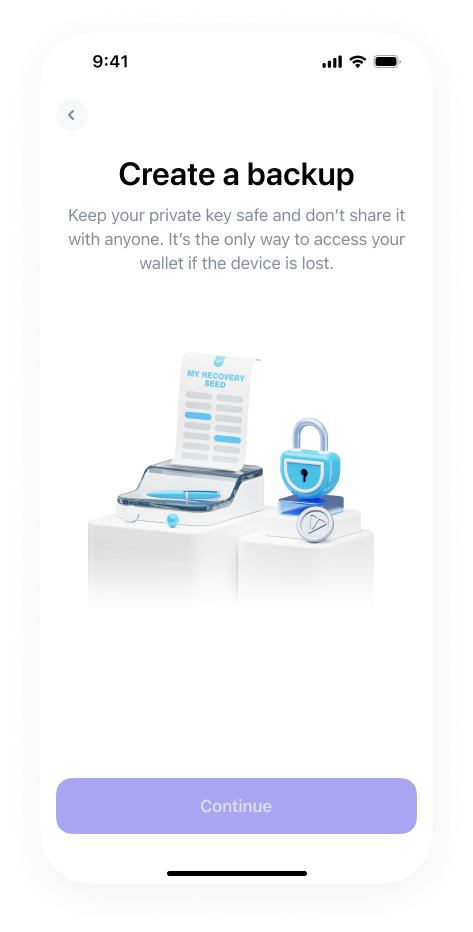
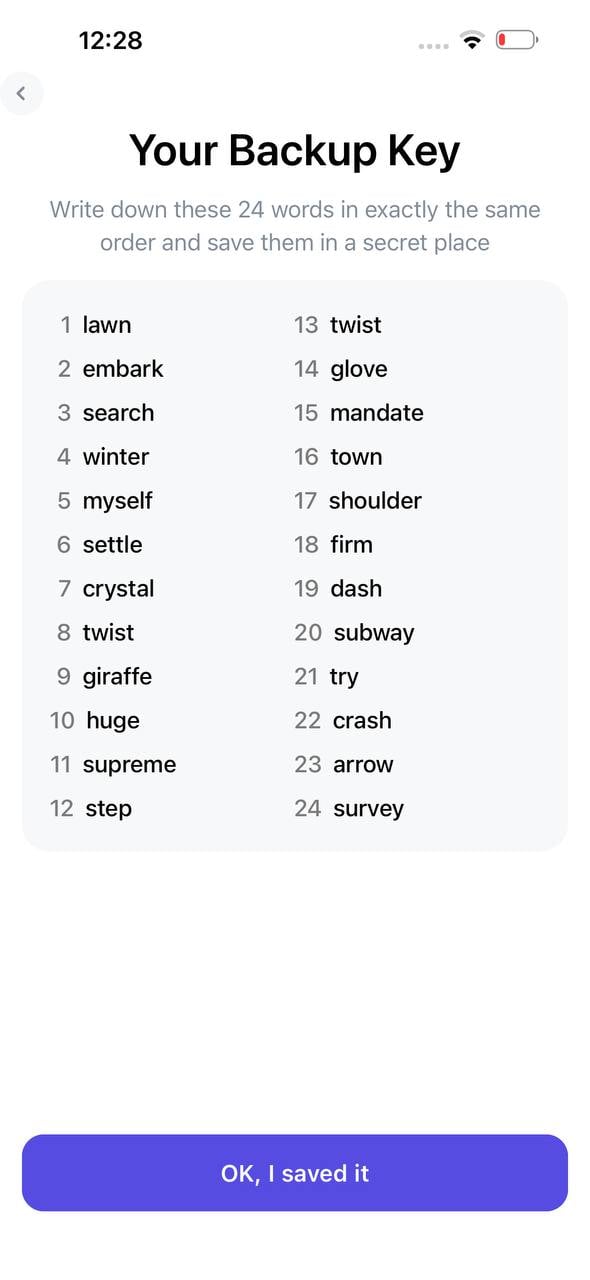
- Write down the seed phrase and store it in a secure location. Taking screenshots is not recommended for security reasons.
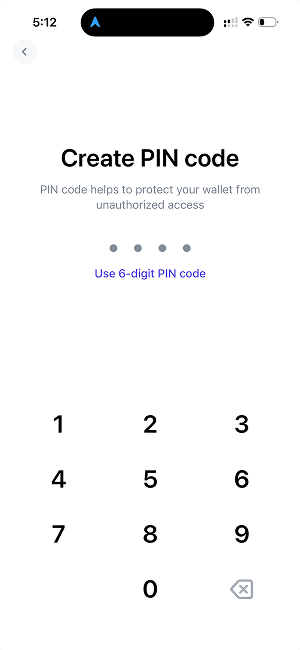
- Create, remember, and confirm a PIN code. It will be requested for operation verification. The PIN code can contain 4 or 6 digits. This step is not present when adding a second or subsequent wallet to the application.
- Enable biometric authentication to confirm transaction sending via fingerprint or Face ID. PIN code will remain as an alternative confirmation method. You will be able to recover your PIN code in case of loss by re-entering your seed phrase. This step is not present when adding a second or subsequent wallet to the application.
- The application will request permission to send push notifications. It is recommended to grant this permission, as the application will notify you about all transactions for wallets, cards, and accounts. This step is not present when adding a second or subsequent wallet to the application.
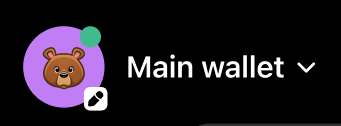
- Wallet creation is complete. You can copy the created wallet address by clicking on it below the balance display or by going to the receive transactions menu. To switch between wallets, click on the wallet name in the upper left part of the screen. You can also change the wallet name and avatar by clicking on the edit icon (pencil).
Importing an Existing Wallet
- You can add an existing wallet to the application either immediately after installation (see step 1 of creating a new wallet) or by tapping on the wallet name in the upper left corner of the screen and selecting the option to add an existing wallet.
- After selecting the corresponding option, the application will open a form for entering the seed phrase. Enter the secret phrase words in the corresponding fields. The application will suggest variants of the word being typed in the field above the keyboard. If a word is entered incorrectly, the application will highlight the corresponding field. You can also paste the entire secret phrase into the first word field (all words in the first field separated by single spaces, without commas or extra characters) if it’s in the clipboard, however storing keys in the clipboard may be unsafe.
- After confirmation, you will proceed to the main screen of the added wallet.
Adding Ledger
A Ledger hardware wallet can be added as the first or additional wallet.- Tap on the wallet name in the upper left corner of the screen and select the “Connect Ledger” option.
- Choose the connection method. When using iOS, the only available connection method is Bluetooth, while Android also supports wired connection.
- Grant Ledger the requested permissions — connection is impossible without them.
- After the search is complete, select your device from the list of found devices.
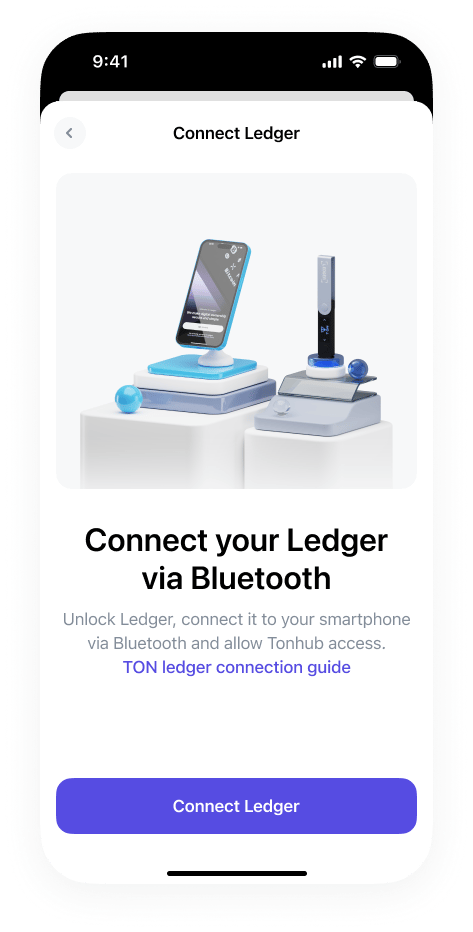
- Open the TON application on your Ledger device. If necessary, update the application to the current version.
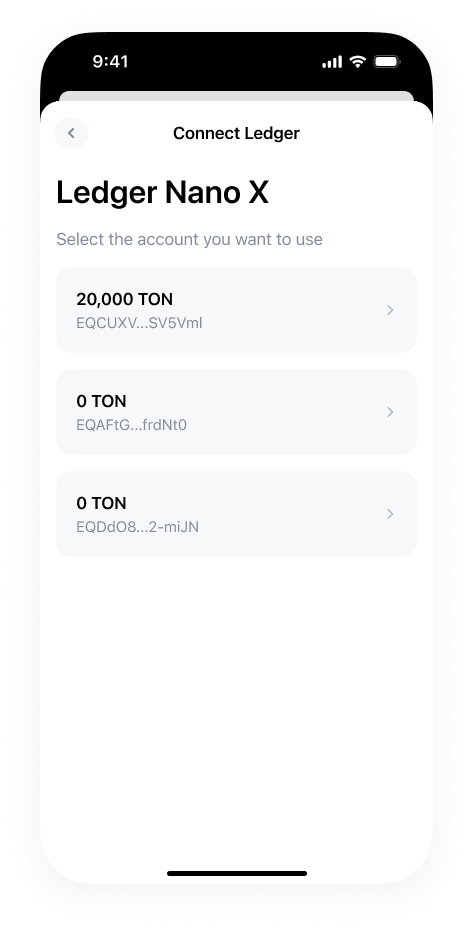
- Choose one of the 9 available addresses.
Attention: Tonhub only supports working with TON on Ledger devices. Solana is not supported.
What to do if the seed phrase doesn’t work
If the wallet reports an input error after entering the seed phrase, it is recommended to perform the following actions:- Check the correct order of words. Make sure there are no gaps or repetitions.
- Ensure that all words correspond to the standard English list (BIP-39), contain no typos, and are not translated into other languages.
- Make sure the phrase contains exactly 24 words — Tonhub supports this format specifically.
- Ensure that you are entering a seed phrase from a wallet on the TON or Solana network. When entering a phrase from a wallet on a blockchain not supported by Tonhub, the wallet will not open or display assets.
Important: The seed phrase format may vary depending on the application. This most commonly affects wallets in the Solana blockchain. If you are confident that your seed phrase is correct but Tonhub does not accept it, try entering it in the wallet that was used to create it. If the wallet opens, this means that the phrase encoding is not supported by Tonhub.
Wallet Deletion/Logout
A wallet in the blockchain cannot be deleted, but it can be made inactive or logged out of.- Wallet logout - the wallet remains active but is no longer displayed in the application. To perform operations with it, you will need to log in again using the seed.
- Wallet deletion - as required by Apple, the application must have the ability to delete a wallet. In fact, the wallet receives inactive status, but access and the possibility of reactivation are preserved.
Wallet Logout
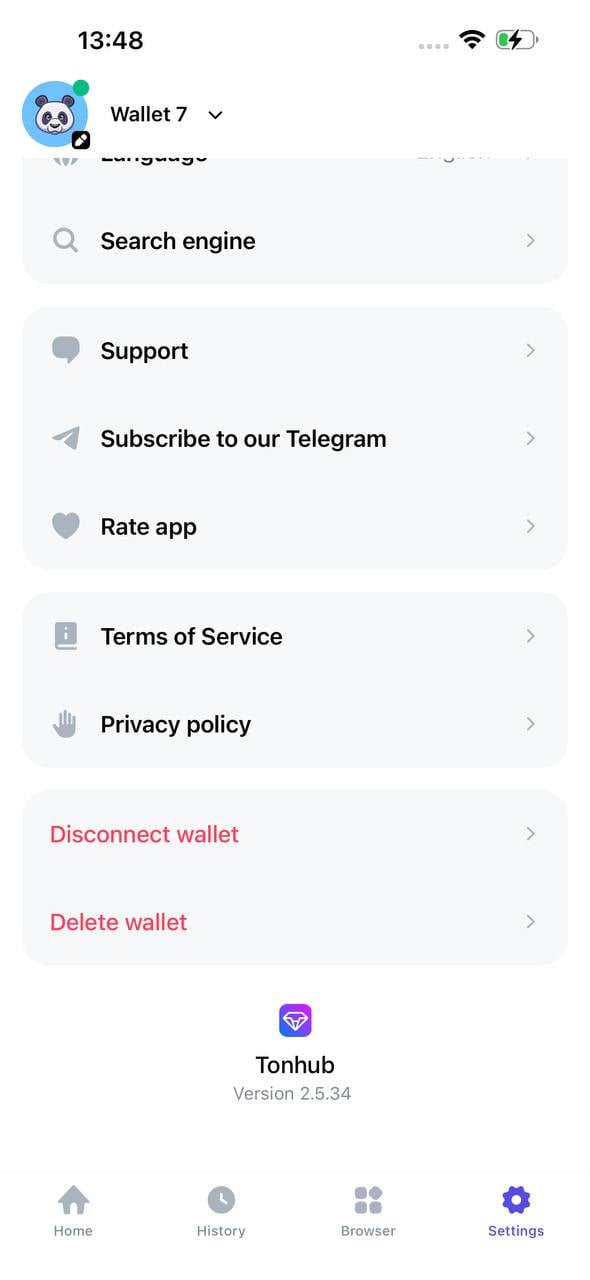
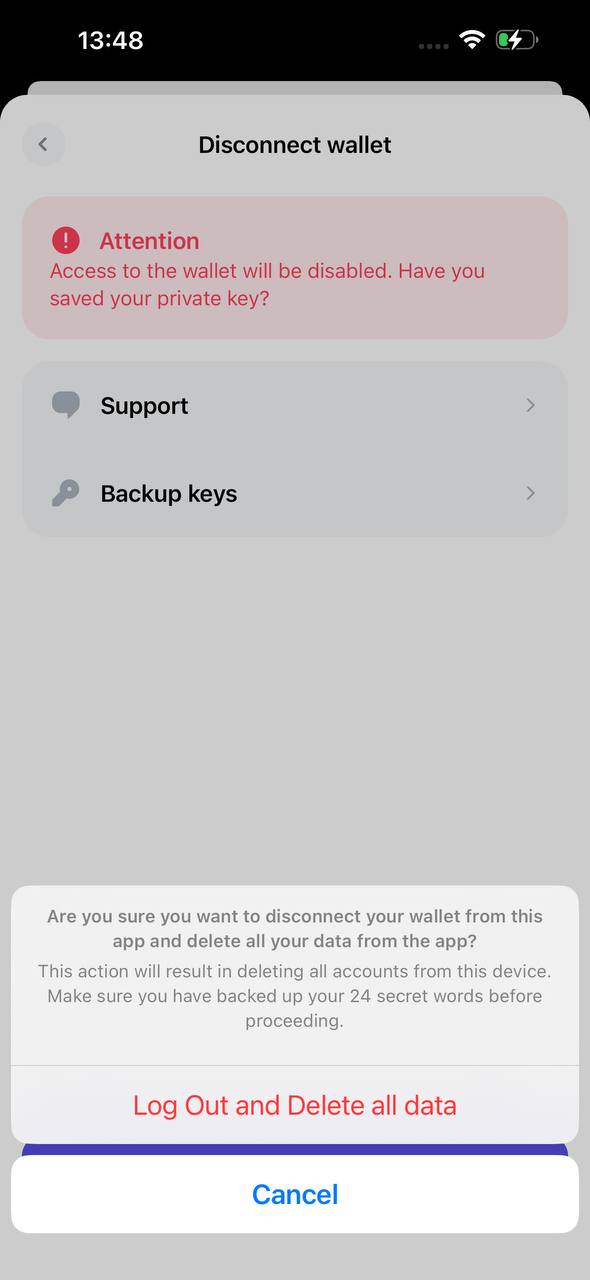
- Go to the settings section, find the “Disconnect Wallet” item and click on it.
- Make sure you have saved the seed phrase for possible wallet recovery in the future.
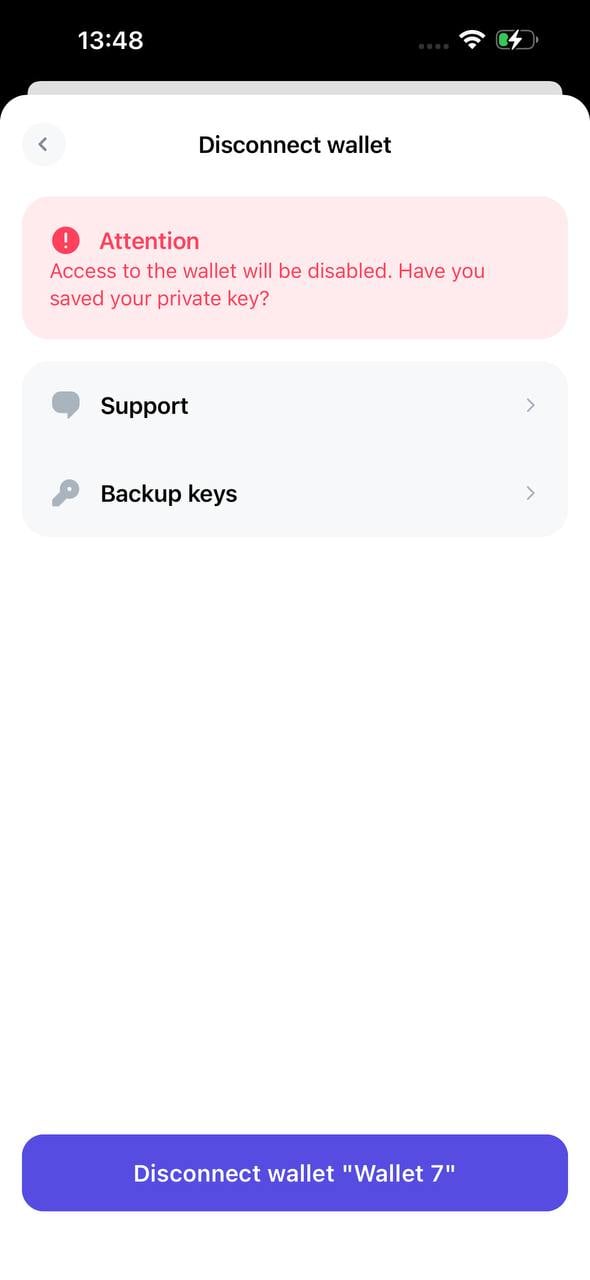
- Confirm logout from the system. After this, the wallet will be removed from your application.
Wallet Deletion
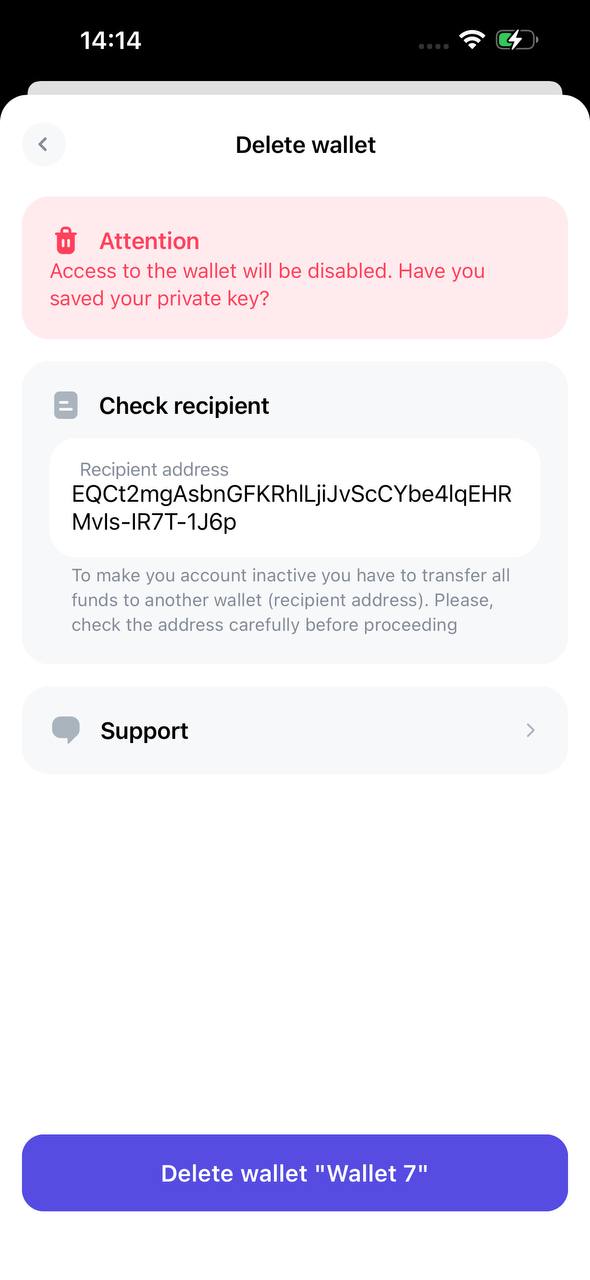
- Go to the settings section, find the “Delete Wallet” option and click on it.
- Enter the address where the assets will be transferred (by default, the Whales CORP address is set). Deletion will be blocked if there are NFTs or USDT in the wallet — you will first be prompted to withdraw them. The wallet must also have sufficient funds to pay the withdrawal fee.
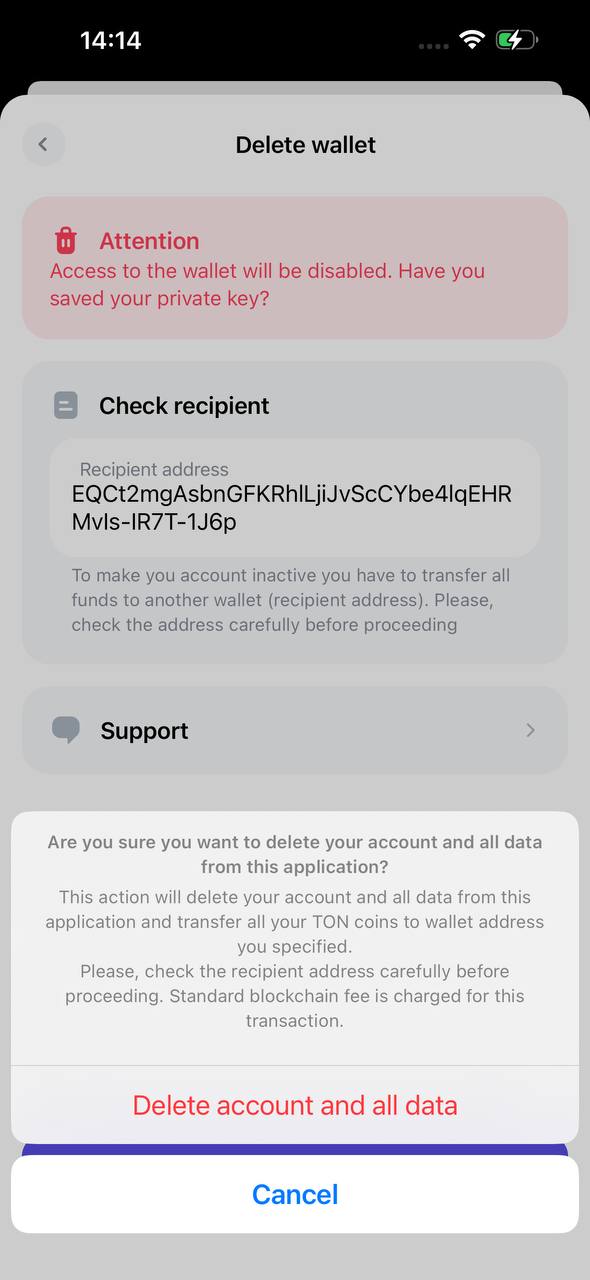
- Confirm the deletion. After this, the wallet will be removed from your application and receive inactive status.
Please note: only TON will be transferred from the wallet. All Solana assets will remain in the wallet and their availability is not verified.
Wallet Versions
The Tonhub application works exclusively with wallet versions 4 and above. When importing wallets of earlier versions, they are not displayed in the application interface. However, the system automatically checks such wallets for the presence of TON and, upon detection, offers the user to migrate assets to a supported version.The key difference between versions 4 and 5 lies in the support for gasless transactions in the fifth version. This feature allows paying transaction fees in the currency of the token being sent, rather than only in TON.
Address Formats
Tonhub uses two main address formats:- EQ… — bounceable address.
- UQ… — non-bounceable address.
It is important to understand that the EQ and UQ prefixes are merely different ways of displaying the same address — the internal structure (workchain and address hash) remains identical. In Tonhub settings, you can select the preferred address display format in the “Address Format” section, however this change only affects the visual representation of the address string and does not affect the wallet itself.