
Search Bar
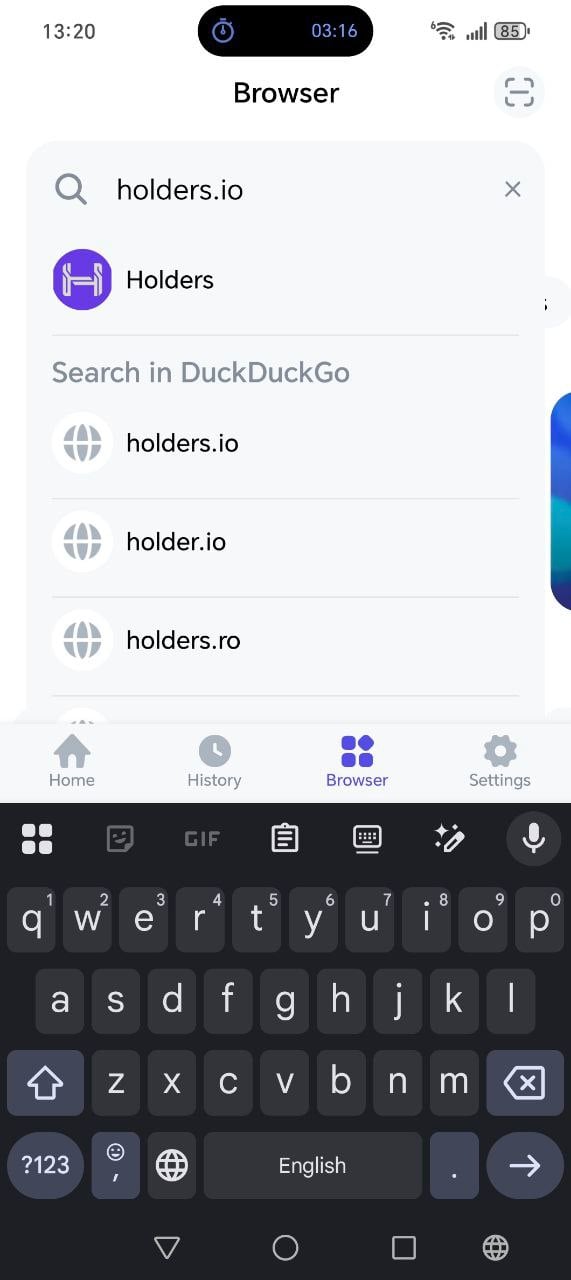
- Enter website address (URL): enter the full address, for example
https://app.example.com, and press “Go” (or equivalent on keyboard). The page will open in the application browser. If the address doesn’t open, the application may show an error message (invalid URL or site unavailable). - Enter search query: if you entered regular text instead of a URL (for example, “TON staking”), the application will send the query to a search engine — Google or DuckDuckGo. Which one specifically is set in Settings → Search Engine. A search results page will open.
- Suggestions: when typing, suggestions may appear below the search bar (recommended dApps and web results). Tap on a suggestion — the corresponding site will open.
Tabs Below the Search Bar
Below the search bar are three tabs (on Android there may be one more visible — “Recommended”).Recommended (Android only)
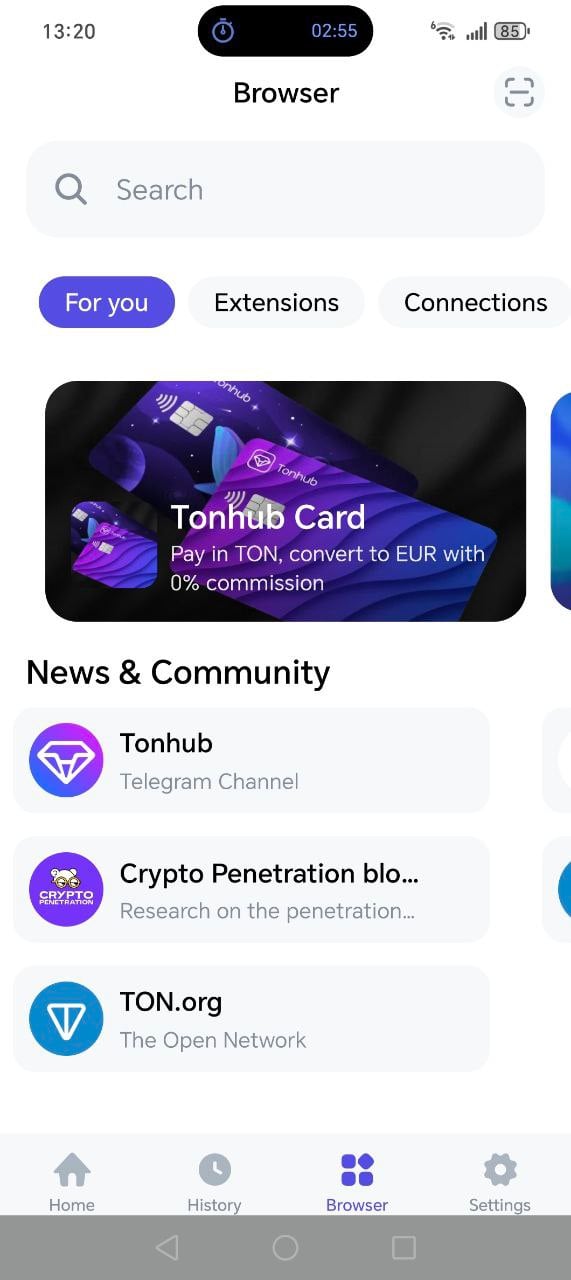
Extensions
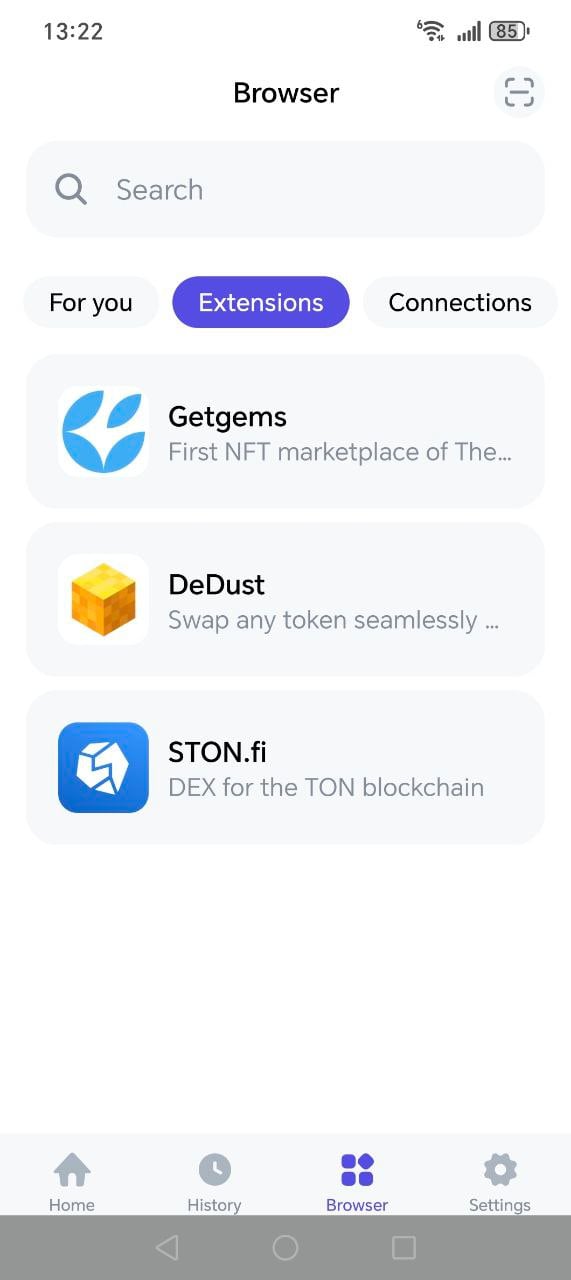
- How to add: open the desired site through the search bar (enter URL and navigate). On first opening, the application may suggest installing or adding it — confirm. After that it will appear in the “Extensions” tab.
- How to remove: tap on the application and select “Revoke Access” (or long press on the application card and select revoke). Confirm — the application will disappear from the list. Its access to the wallet will be revoked.
Connections
Here are shown applications to which your current wallet is connected via TON Connect (you previously pressed “Connect” on the site).- How to disconnect: tap on the application and select “Revoke Access”. Confirm — the application will be disconnected from the wallet and disappear from the connections list for this wallet.
Opening a Site via QR Code
- In the top right corner of the browser screen there is a QR code scanning button (scanner icon).
- Tap it, allow camera access if necessary and point the camera at a QR code with a link to a site or dApp. After recognition, the corresponding page will open.
Connecting Wallet to Application (TON Connect)
- Open the application site through the search bar or from “Recommended” / “Extensions”.
- On the site, press the “Connect Wallet” button (or equivalent). A connection request will appear in Tonhub: application name and requested permissions.
- Confirm the connection — the wallet will be linked to this application. It will appear in the “Connections” tab.
- When the application requests signing a transaction or data, a confirmation screen will open in Tonhub. Check the amount, address and details, then confirm or reject the request.