
Adding a Card via In-app Provisioning
Using this interface is only possible if the application in which it is implemented has passed Apple certification.-
When creating a new card or navigating to a previously issued card, a button for adding the card to Apple Pay is displayed to the user.
-1.PNG?fit=max&auto=format&n=KzAAWyvWL5SHyBrh&q=85&s=371e59bf26c873823cacef5719b7d5c7 "IMG 0609(1) 1")
-
When the button is pressed, the Apple interface opens with brief card data. The user clicks continue.

- The user accepts Apple’s policies.
-
The user can make the card the default payment method in the wallet or return to the application.
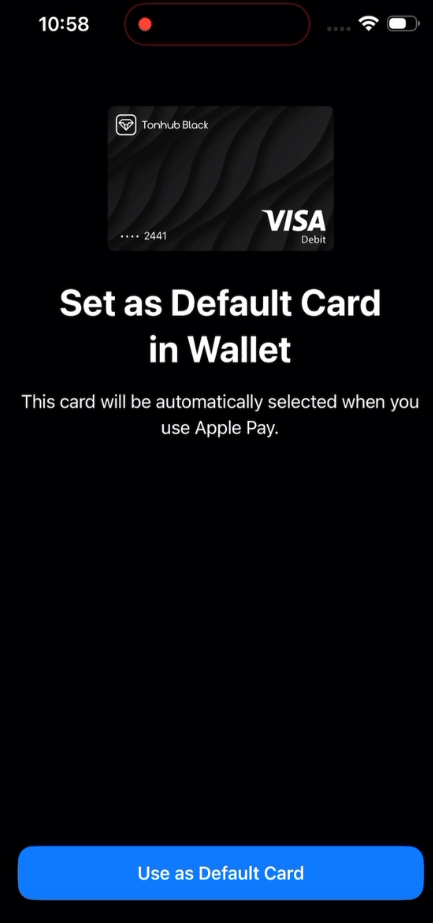
- The user verifies the card in Apple Wallet.
- The Apple Pay add button disappears for the added card.
Adding a Card to Apple Pay Manually
A payment card can be added to Apple Pay/Apple Wallet regardless of whether the application in which it is issued has passed Apple certification. It is sufficient for the issuing bank to have passed the appropriate certification.Card addition procedure:
-
The user opens the Apple Wallet application
.PNG?fit=max&auto=format&n=KzAAWyvWL5SHyBrh&q=85&s=09bcff0d4d1a2f570d07987817941fef "IMG 0609(1)")
- The user selects the “Debit or Credit Card” option
-
The user enters card data using one of the methods:
- Automatic reading via NFC
- Manual data entry
.PNG?fit=max&auto=format&n=KzAAWyvWL5SHyBrh&q=85&s=405550880f165942d3922094f0d6bc54 "IMG 0616(1)")
- The user accepts the Terms and Conditions
-
If necessary, the user goes through the card verification procedure.
To verify the card, the user can contact Holders support..PNG?fit=max&auto=format&n=KzAAWyvWL5SHyBrh&q=85&s=c2c9929dcf2e71fcc89fe5f7fb913e2e "IMG 0617(1)")