> ## Documentation Index
> Fetch the complete documentation index at: https://whalescorp.mintlify.site/llms.txt
> Use this file to discover all available pages before exploring further.
# Adding/removing a card from Google Pay
## Adding a card through In-app provisioning
1. When creating a new card or navigating to a previously issued one, a button for adding the card to Google Pay is displayed.
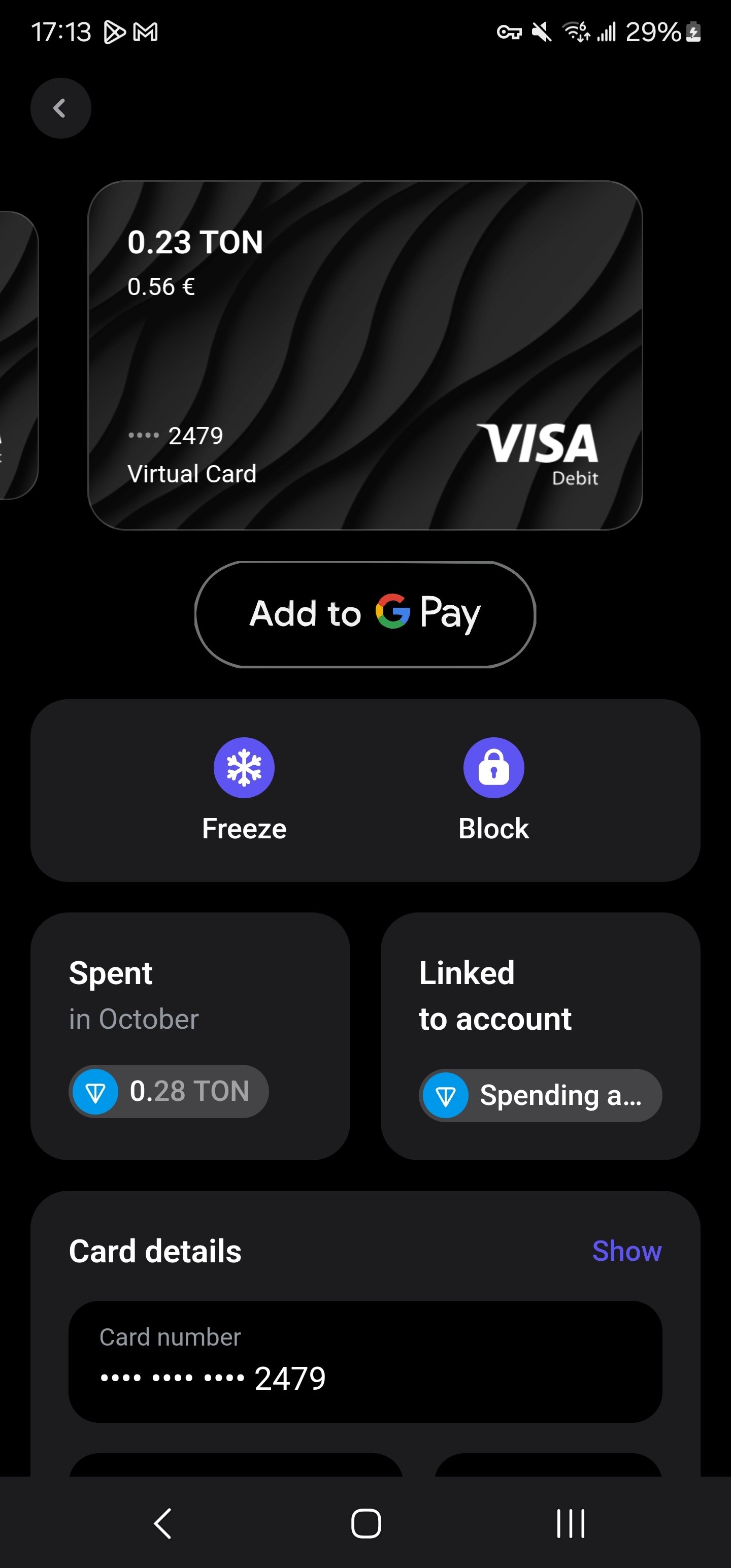 2. When the button is pressed, the Google interface opens with the card user's data. The user clicks Add card to wallet.
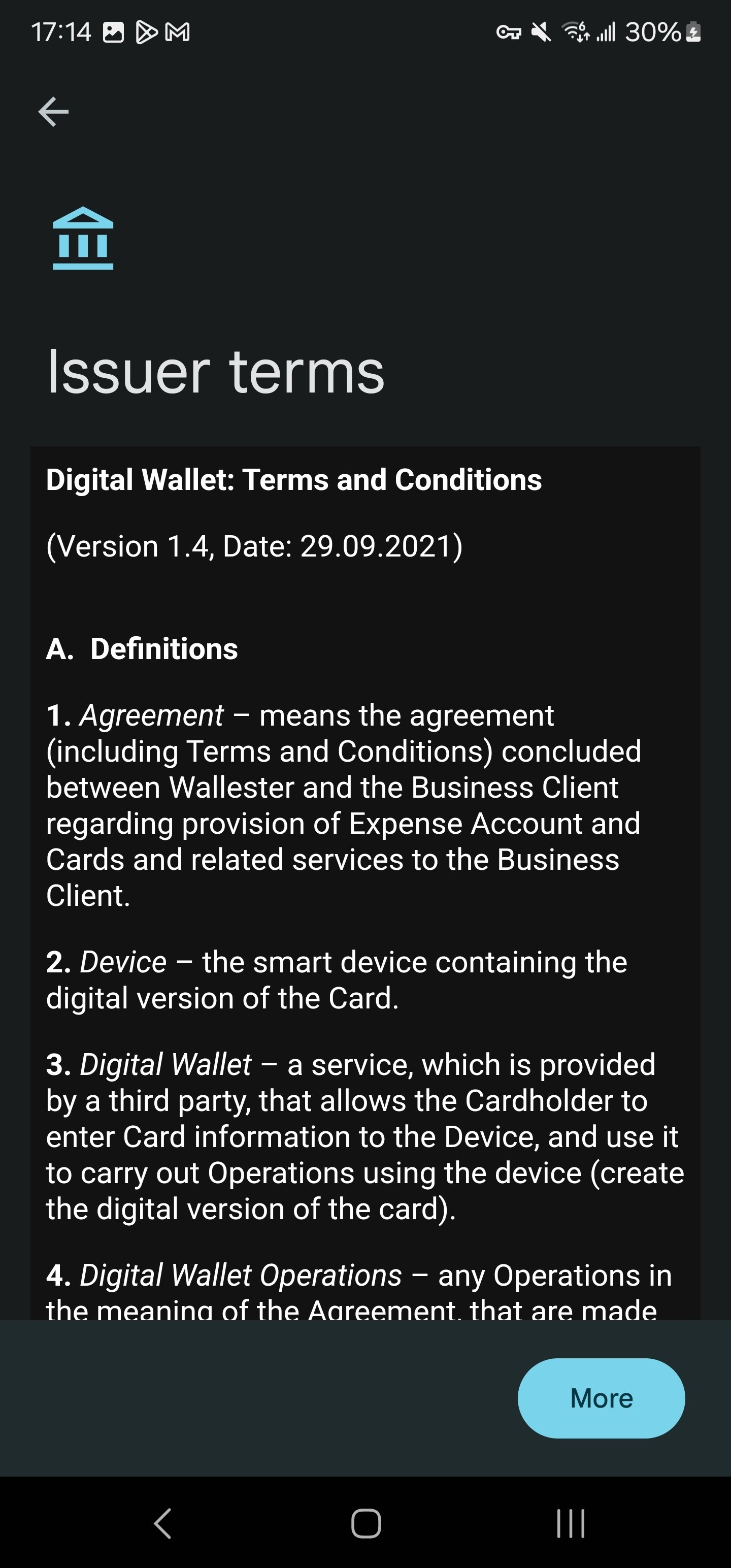
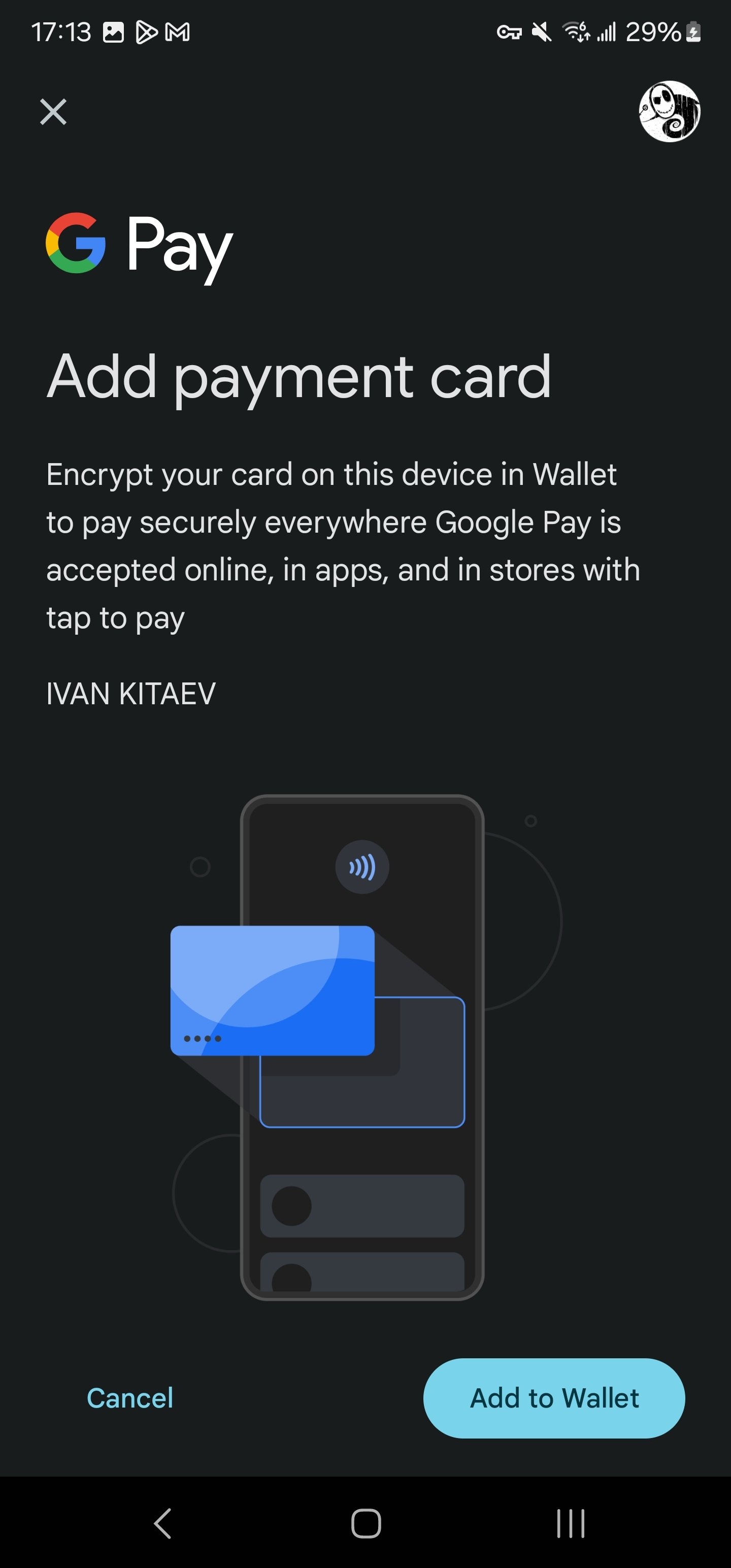 3. The user agrees to Google's policies.
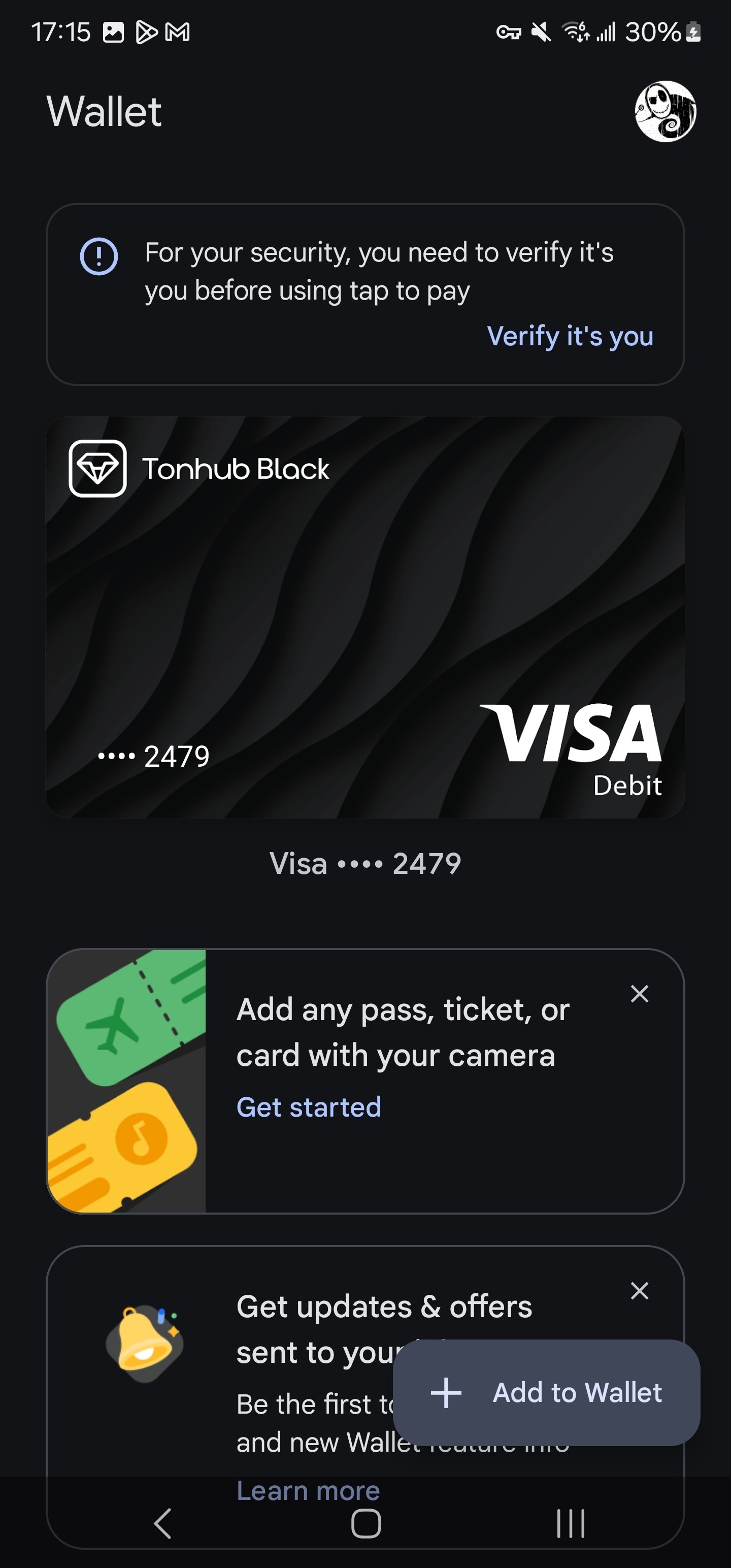
 4. Google Wallet reports successful card addition.
5. Typically, the user verifies the card in Google Wallet by entering a password or using biometrics. In some cases, Google will ask to confirm the phone number
4. Google Wallet reports successful card addition.
5. Typically, the user verifies the card in Google Wallet by entering a password or using biometrics. In some cases, Google will ask to confirm the phone number
 ## Manual Card Addition
A payment card can be added to GPay/Google Wallet regardless of whether the application in which it is issued has undergone Google certification. It is sufficient for the issuing bank to have passed the appropriate certification.Manual Card Addition
## Removing a card from Google Pay
Payment cards in Google Pay can be added and removed at the user's discretion. When a card is removed from Google Wallet, the ability to use it for contactless payments is lost. The card removal procedure is performed through the card management menu, which opens when tapping on the card image. It's important to note that removing a card from Google Pay does not affect the processing of refund payments that arrive after its removal, as the issuing bank processes these transactions using the original payment card details.\
If a card is removed from Google Pay, a button to re-add it will appear again under its image in Holders.
This documentation is built and hosted on [Mintlify](https://mintlify.com), a developer documentation platform.
## Manual Card Addition
A payment card can be added to GPay/Google Wallet regardless of whether the application in which it is issued has undergone Google certification. It is sufficient for the issuing bank to have passed the appropriate certification.Manual Card Addition
## Removing a card from Google Pay
Payment cards in Google Pay can be added and removed at the user's discretion. When a card is removed from Google Wallet, the ability to use it for contactless payments is lost. The card removal procedure is performed through the card management menu, which opens when tapping on the card image. It's important to note that removing a card from Google Pay does not affect the processing of refund payments that arrive after its removal, as the issuing bank processes these transactions using the original payment card details.\
If a card is removed from Google Pay, a button to re-add it will appear again under its image in Holders.
This documentation is built and hosted on [Mintlify](https://mintlify.com), a developer documentation platform.