> ## Documentation Index
> Fetch the complete documentation index at: https://whalescorp.mintlify.site/llms.txt
> Use this file to discover all available pages before exploring further.
# Accounts and cards opening
# Registration in Holders
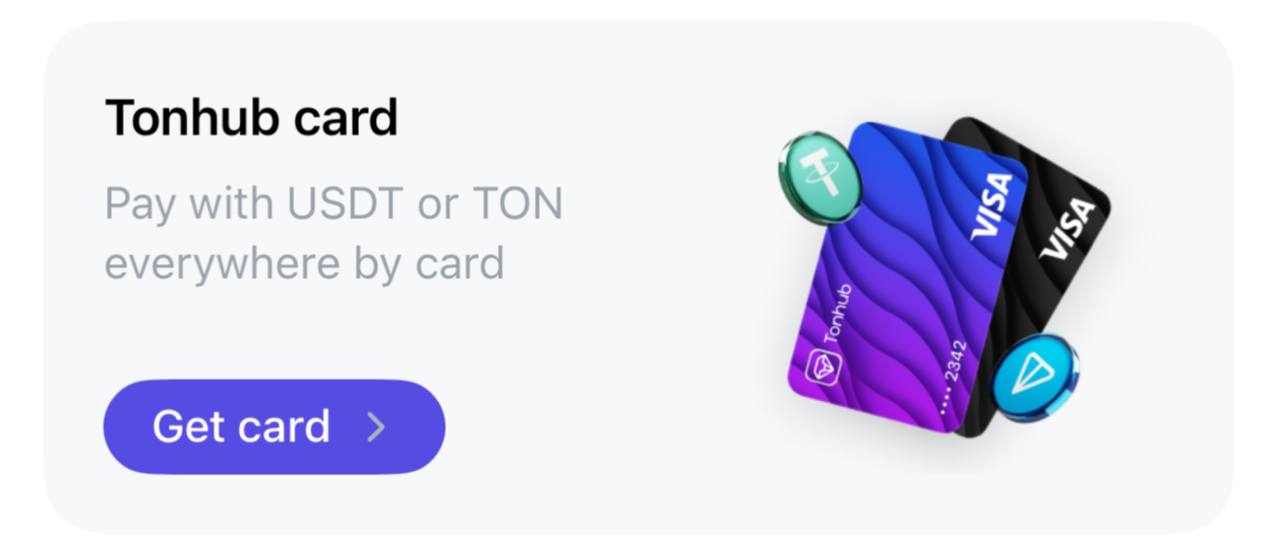
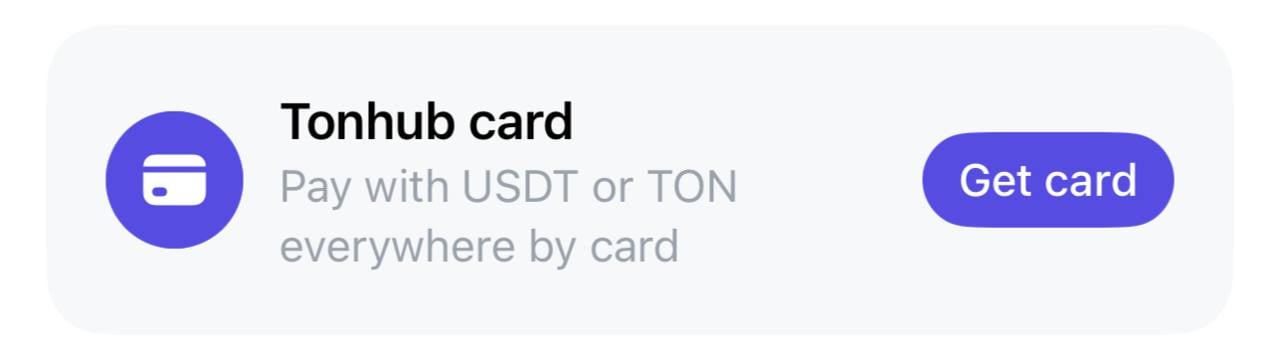
1. Click on the banner on the main wallet screen or in the settings menu.
 ***
***
 2. Follow [the instructions](/holders/product-review/onboarding/onboarding-process) for registration.
# Opening an account
1. To open a new account go to Cards mode by clicking the toggle at the top of the wallet screen.
2. Follow [the instructions](/holders/product-review/onboarding/onboarding-process) for registration.
# Opening an account
1. To open a new account go to Cards mode by clicking the toggle at the top of the wallet screen.
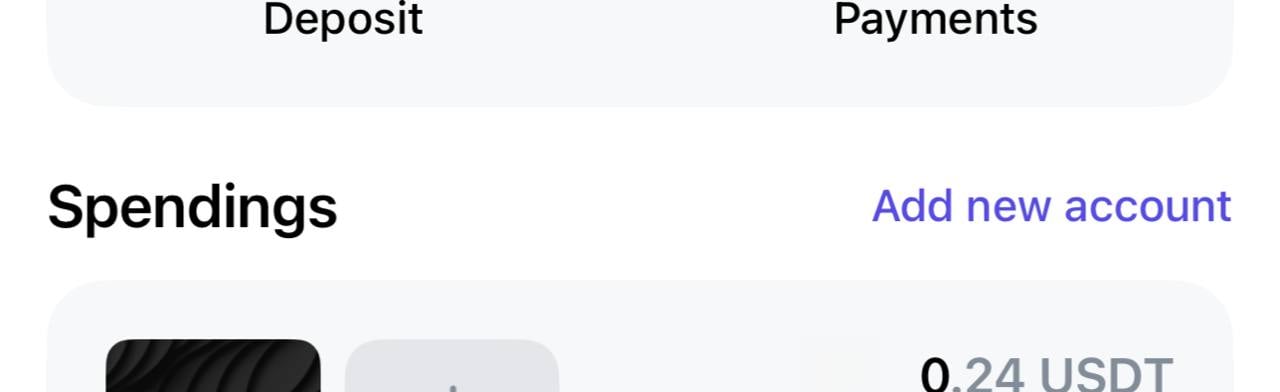
 2. Click "Add account" and follow [the instructions](/holders/product-review/accounts/account-operations).
 # Card issuance
To issue a new card, go to Cards mode and use one of the following methods:
* Click on the card silhouette with the + image on the account card for which you want to issue a card, and follow the instructions.
# Card issuance
To issue a new card, go to Cards mode and use one of the following methods:
* Click on the card silhouette with the + image on the account card for which you want to issue a card, and follow the instructions.
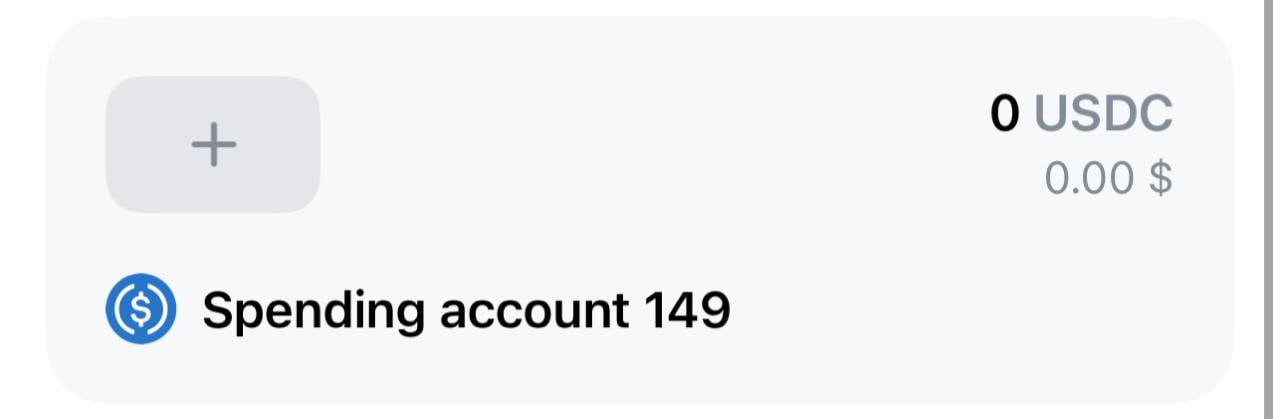 * Click on the account card for which you want to issue a card, and follow the instructions.
# Hiding accounts
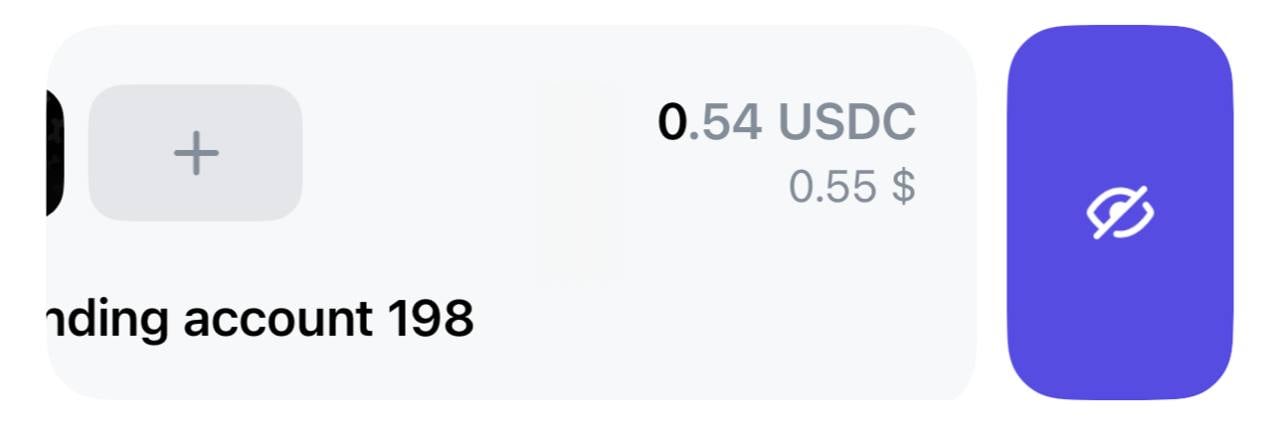
An account can be temporarily hidden from the list in Cards mode if it is not being used. To do this, swipe left on the desired account card and click on the icon with the crossed-out eye.
* Click on the account card for which you want to issue a card, and follow the instructions.
# Hiding accounts
An account can be temporarily hidden from the list in Cards mode if it is not being used. To do this, swipe left on the desired account card and click on the icon with the crossed-out eye.
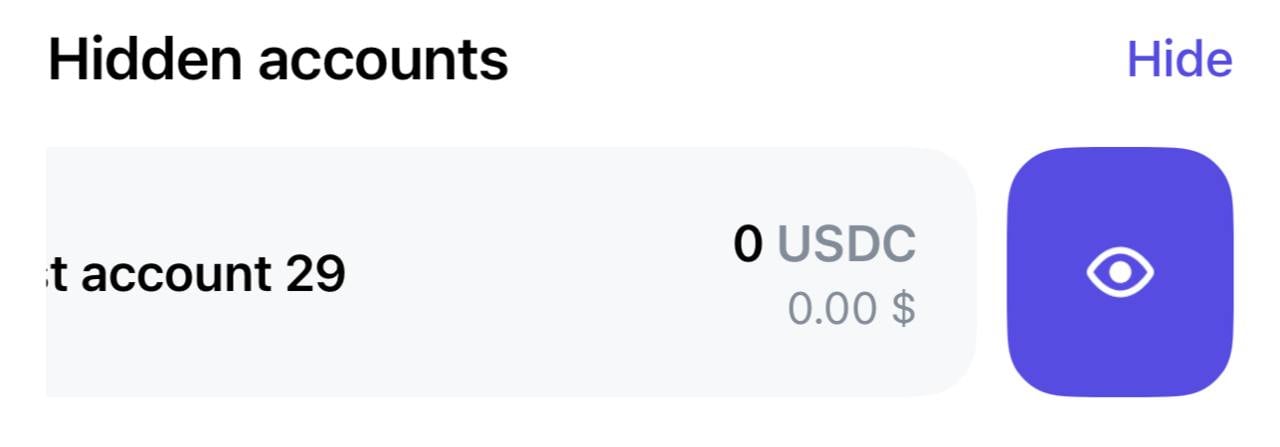
 To restore the account display, go to the bottom of the interface and click the "Show" button. Then perform a left swipe on the hidden account and click on the eye icon — the account will return to the active list.
 This documentation is built and hosted on [Mintlify](https://mintlify.com), a developer documentation platform.